
Fly Lead Gen Tools: The Complete How-To Guide
Everything you need to go from a fresh account to leads in your inbox: signing in, switching on tools, branding them as your agency, Auditor Mode, embedding on your website, and reading your results. Written for everyone, no technical background needed.
Watch the 5 minute walkthrough
The fastest way to understand Fly Lead Gen Tools is to watch the walkthrough below. It covers the whole journey: signing up, branding a tool, embedding it on a website, and seeing the first lead arrive. Every step in the video is also written out on this page, so you can follow along at your own pace.
The same video is always available inside your dashboard under the How To tab, together with quick links to the sections on this page.
Sign in and open your dashboard
Everything starts at fly-social.com. Signing in takes a few seconds and uses your Google account, so there is no password to remember.
- 1Open fly-social.com and click Sign in in the top right corner. New here? Click Create account or Start free trial instead, the flow is the same.
- 2Choose your Google account on the Google screen that opens and approve access.
- 3You land in your dashboard at fly-social.com/fly-app, on the Lead Gen Tools page.
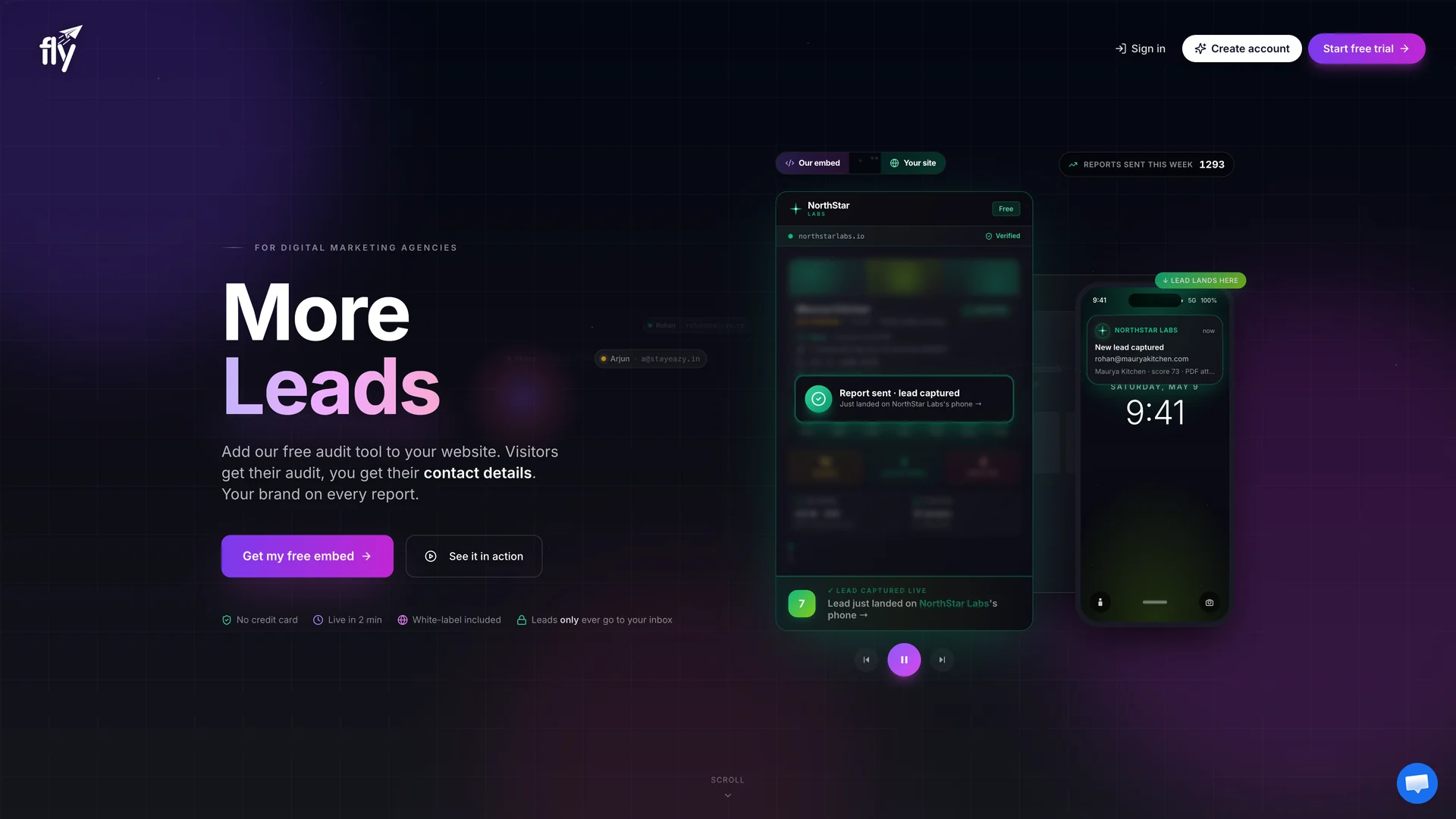
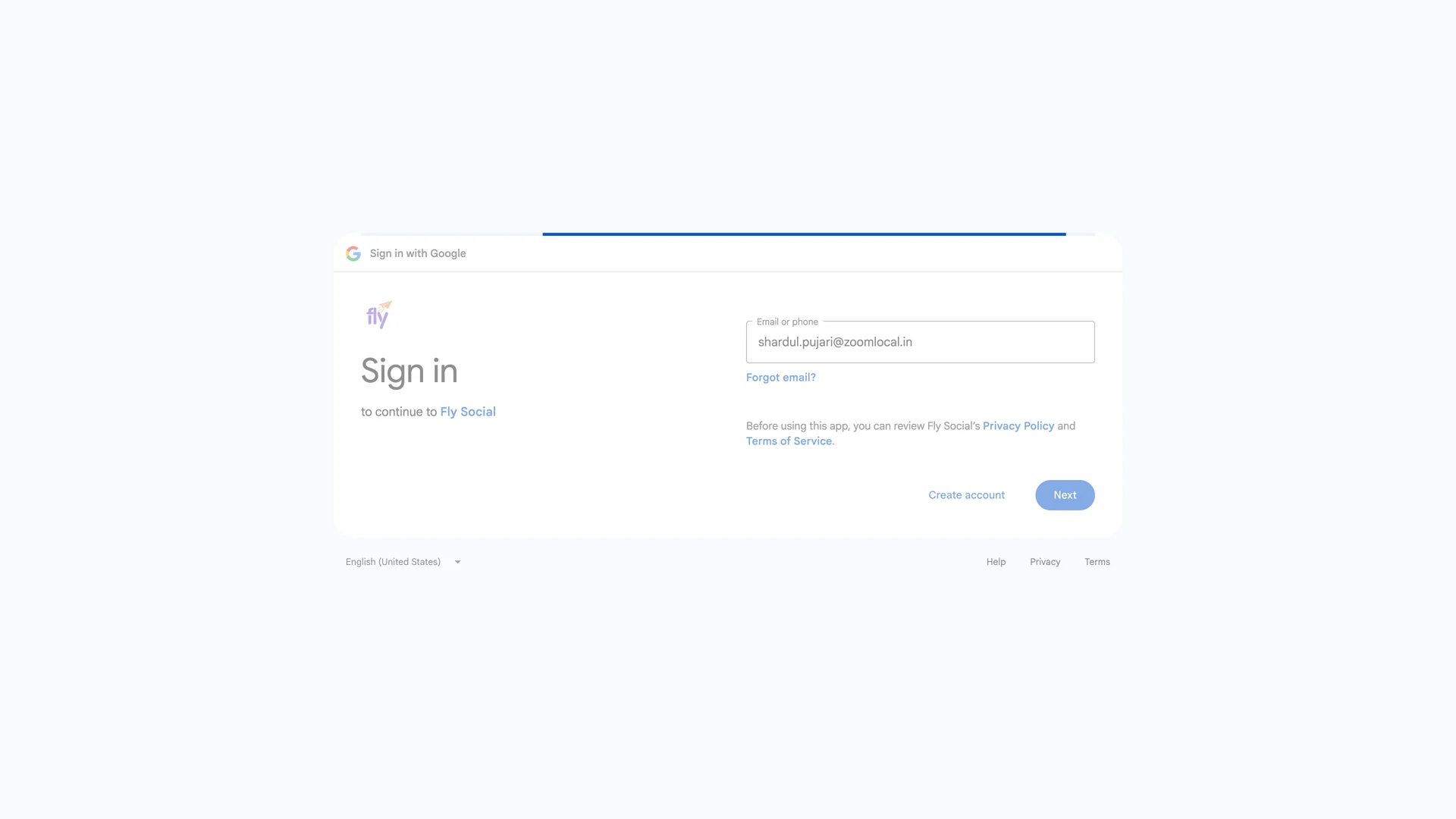
Stuck on the landing page and cannot find your dashboard?
Get to know your dashboard
The Lead Gen Tools page is your home base. The sidebar on the left has three entries: Lead Gen Tools (this page), Analytics, and How To. The four tiles at the top give you the state of your account at a glance.
- Available tools: how many tools you can switch on. Every account gets the full catalog of 13.
- Tool live: how many tools are currently switched on and embeddable.
- Lead recipient: how many email addresses receive a notification when a lead comes in. Click View per-tool to see the list for each tool.
- Scans remaining: how many tool runs you have left, at a glance. Every tool costs one scan per run, except AI Search Visibility which costs seven.
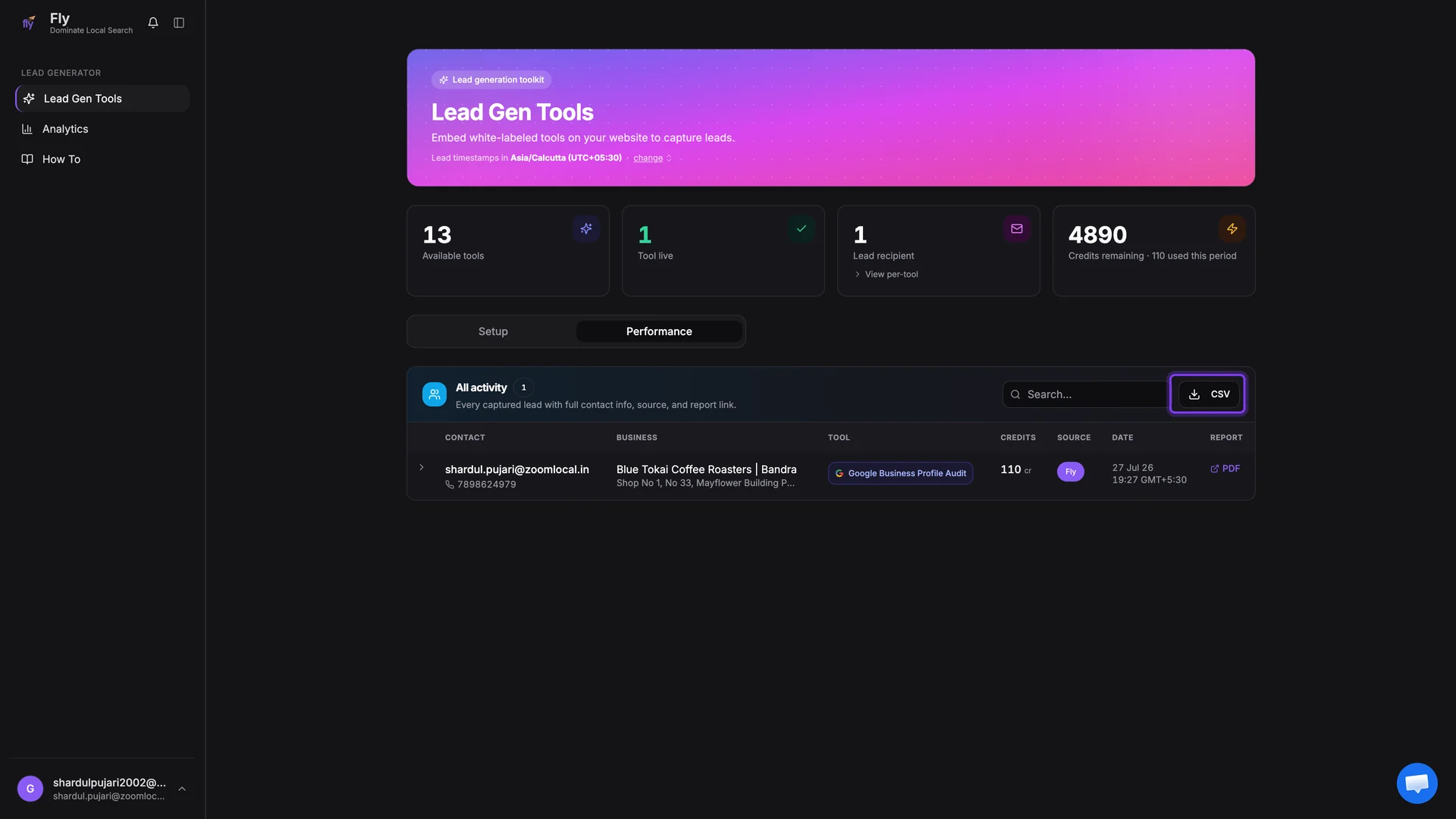
Below the tiles sit two tabs. Setup is where you switch tools on, configure them, and copy embed codes. Performance is your lead inbox, every captured lead appears there with full contact details and the report it came from. The rest of this guide walks through both.
Switch on the tools you want to offer
Open the Setup tab. Each tool has its own card with a short description and a toggle on the right. Flip the toggle and the tool goes live instantly. The Configure, Embed code, and Audit now buttons on the card unlock as soon as the tool is on.
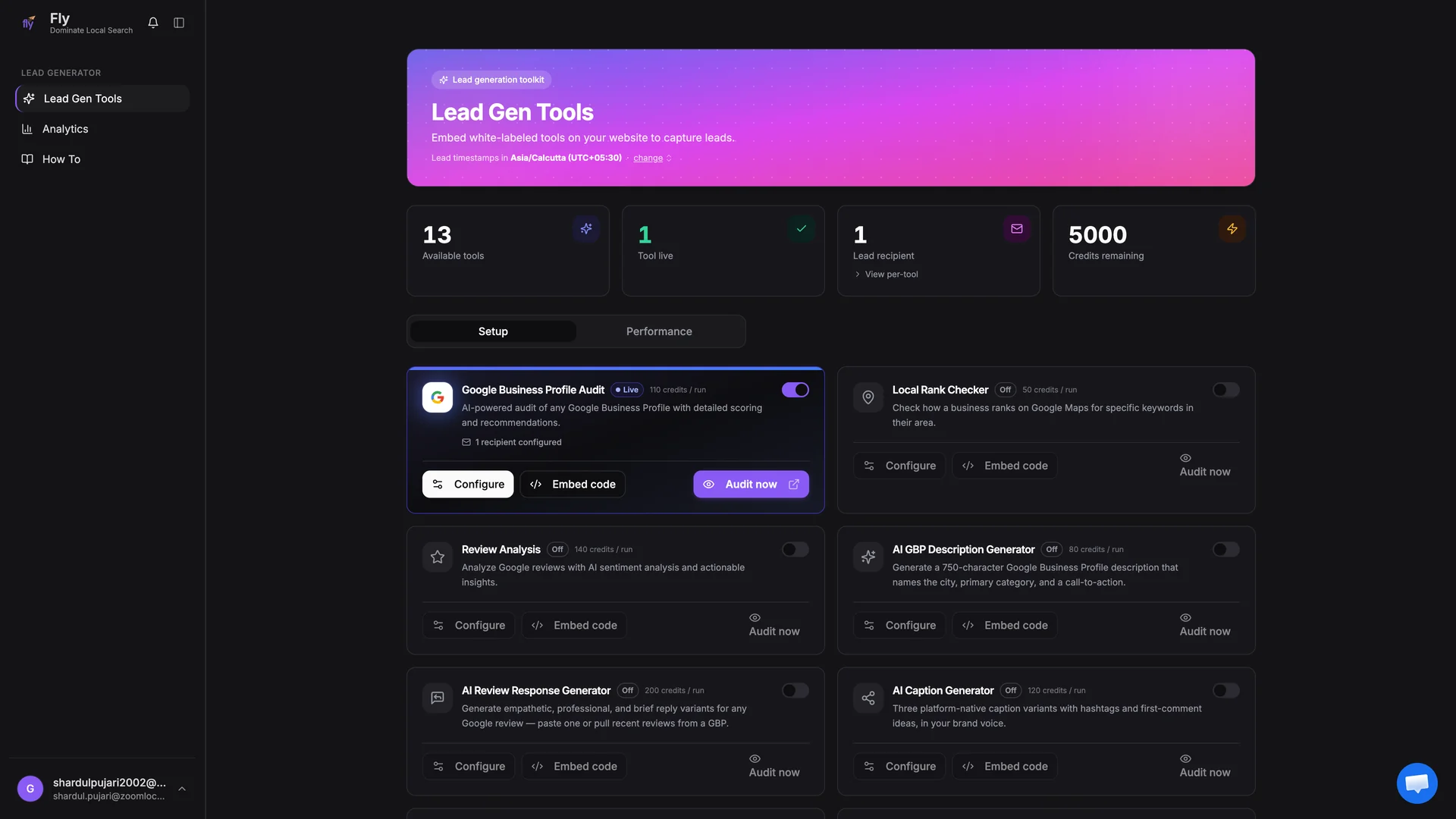
Here is the full catalog:
| Tool | What it does |
|---|---|
| Google Business Profile Audit | Full AI audit of any Google Business Profile with scores and a fix-first list. |
| Local Rank Checker | Shows where a business ranks on Google Maps for a keyword in their area. |
| Review Analysis | AI sentiment analysis across a profile's Google reviews. |
| AI GBP Description Generator | Writes a 750 character profile description with city, category, and a call to action. |
| AI Review Response Generator | Generates professional reply variants for any Google review. |
| AI Caption Generator | Three platform native caption variants with hashtags, in the brand's voice. |
| 90-day Content Calendar Generator | Three months of post themes, captions, hashtags, and image prompts. |
| LinkedIn Profile Audit | Scored audit of a LinkedIn headline, About section, and recent activity. |
| Instagram Profile Audit | Scores an Instagram profile against its industry benchmark with a 30 day plan. |
| Google Posts Health Check | Checks posting cadence and per post quality, with a 30 day posting calendar. |
| Restaurant Profile Audit | Restaurant specific GBP audit: menu link, food photos, reservations, delivery. |
| AI Search Visibility | Runs real buying intent prompts through ChatGPT, Gemini, Claude, and Perplexity. |
| SEO Site Audit | Crawls up to 25 pages and scores technical SEO health with a prioritised fix list. |
Start with one tool
Configure the tool: language, leads, and limits
Click Configure on a live tool card. Everything a visitor sees, and everything that happens with their details, is controlled from this one dialog. Work through it top to bottom.
Language
Pick the language for the embedded tool. It translates the tool itself, the audit findings, and the PDF report your visitor downloads. You can edit the visitor facing text separately for each language you use.
Where do leads go?
Add at least one email address under Email recipients. Every time a visitor unlocks a report, each recipient gets an email with the lead's contact details and the report attached. You can add several recipients, for example your sales inbox and your own address. Under Advanced, connect a CRM you can also add a webhook so each lead is pushed straight into your CRM.
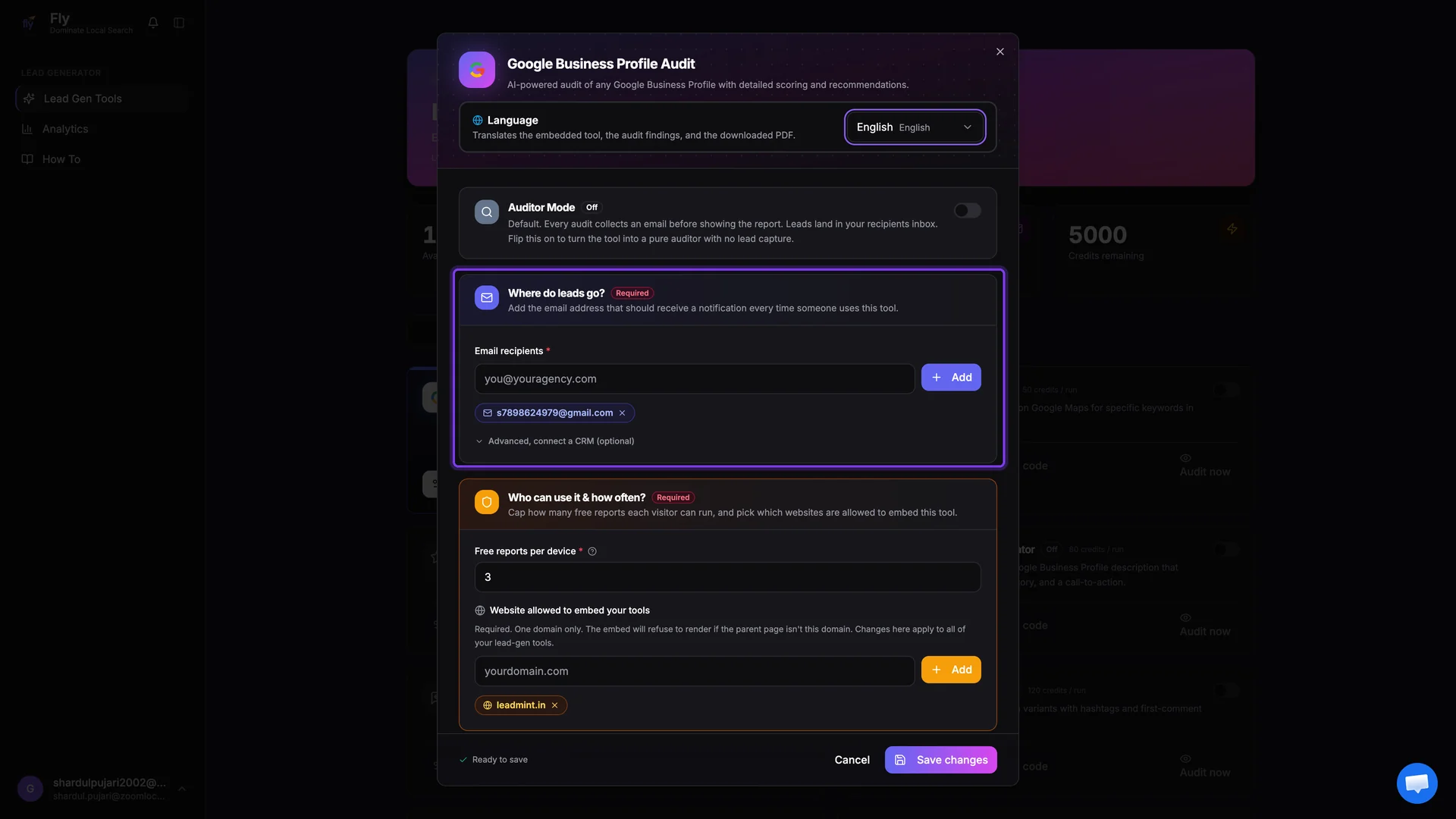
Who can use it and how often?
- Free reports per device: caps how many reports one visitor can run on the same device. The default is 3, the maximum is 100, and leaving it empty means unlimited. The cap stops a single visitor from running audit after audit.
- Website allowed to embed your tools: enter the one domain where your tools will live, for example youragency.com. The embed refuses to render anywhere else, so nobody can lift your embed code and run your tools on another site. This setting is shared across all of your tools.
The domain allowlist is strict by design
Make it look like your agency
The same Configure dialog handles branding. Visitors should only ever see your agency, and these settings make that happen on the embed and on the PDF report.
Your brand
- Logo: upload a PNG, JPG, WEBP, or GIF up to 5MB. It appears on the embed and on every PDF report.
- Primary color: used on buttons and main highlights.
- Accent color: used on gradient highlights. The preview strip below the pickers shows the combination live.
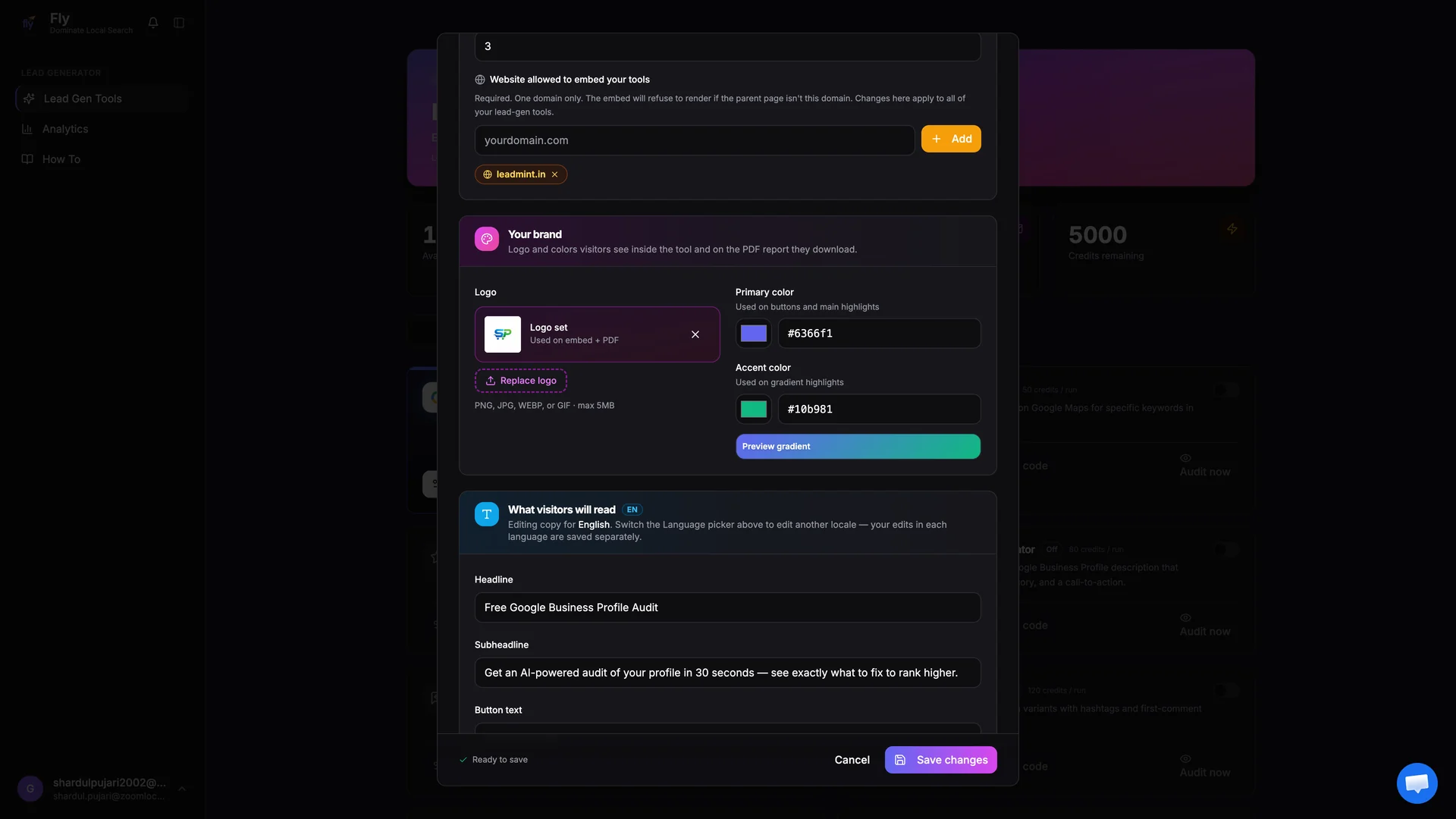
What visitors will read
Edit the Headline, Subheadline, and Button text that appear at the top of the embedded tool. If you use more than one language, switch the Language picker and edit the copy for each language separately, your edits are saved per language.
The contact card
Switch on Show Call us and Email us on the embed to display a small contact card after a visitor uses the tool, and on the PDF report. Fill in your phone number and email address. The optional CTA button link decides where the Contact Our Team button on the PDF sends people: a booking page, a contact form, or a WhatsApp link. Leave it blank to fall back to your email.
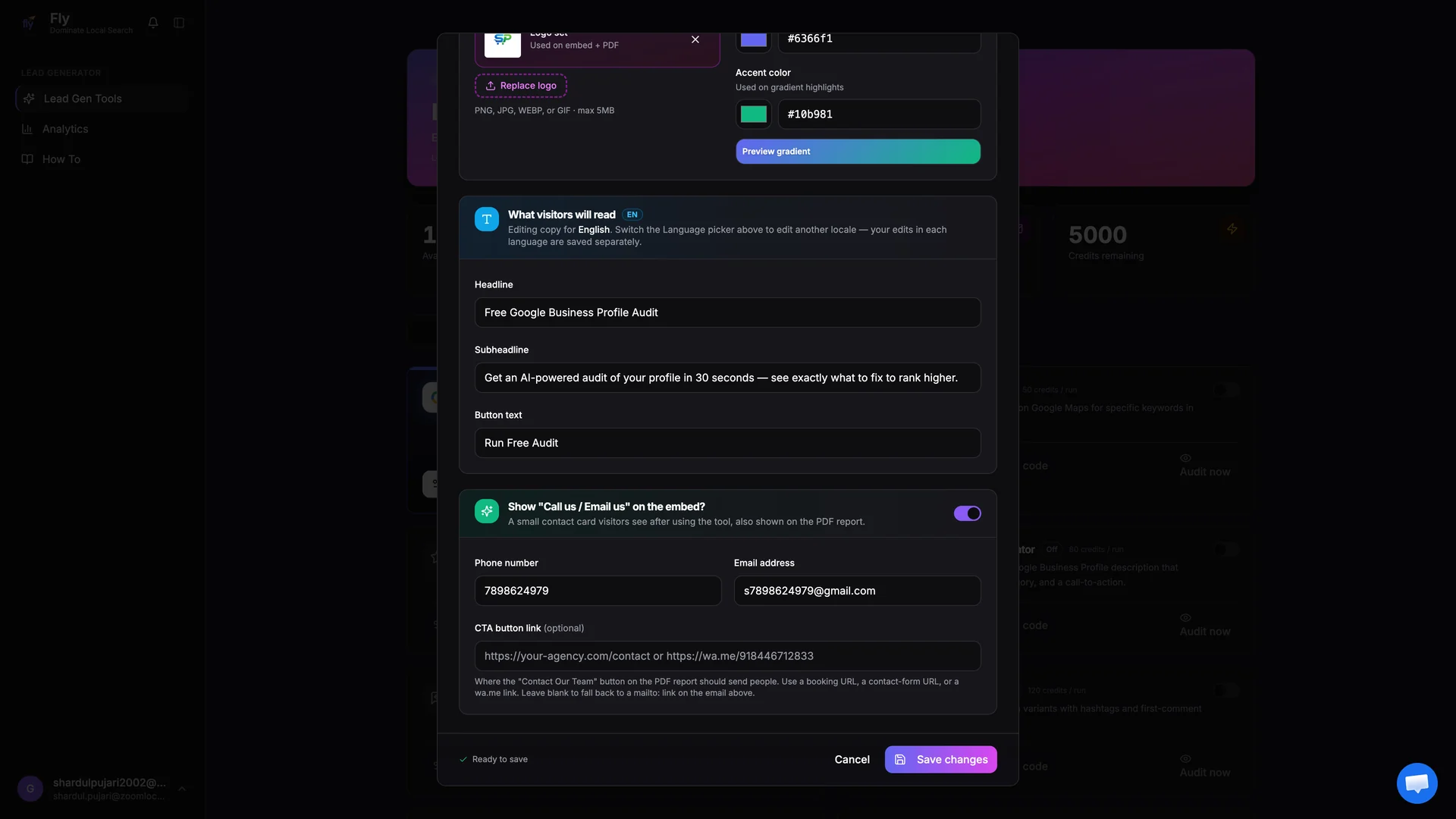
When you are done, click Save changes. The embed updates immediately, there is nothing to redeploy on your website.
Where your changes show up
Every setting in this dialog takes effect the moment you save. Here is exactly where each change is reflected:
| You change | It reflects in |
|---|---|
| Logo, colors, headline, subheadline, button text | The embedded tool on your website and every new PDF report, instantly on save. |
| Language | The embed, the audit findings, and the PDF for all new runs. |
| Email recipients and CRM webhook | The very next lead that is captured. |
| Free reports per device | Visitors' next run on your embed. |
| Allowed website domain | All of your tools at once, immediately. |
| Auditor Mode toggle | The embed immediately: the email gate appears or disappears on the next load. |
| Tool on and off toggle | The embed and the Setup card immediately. |
No redeploys, ever
Auditor Mode: run audits without capturing leads
By default every tool collects an email before showing the full report. That is the lead generation engine. Sometimes you do not want that, for example when you are auditing prospects yourself before a sales call, or checking your own clients' profiles. That is what Auditor Mode is for.
Flip the Auditor Mode toggle at the top of the Configure dialog and save. From that moment the tool behaves as a pure auditor:
- Visitors skip the email gate completely and see the full report immediately.
- No lead is captured and no notification email is sent to your recipients.
- Your recipient list is kept but paused, switch Auditor Mode off and lead delivery resumes.
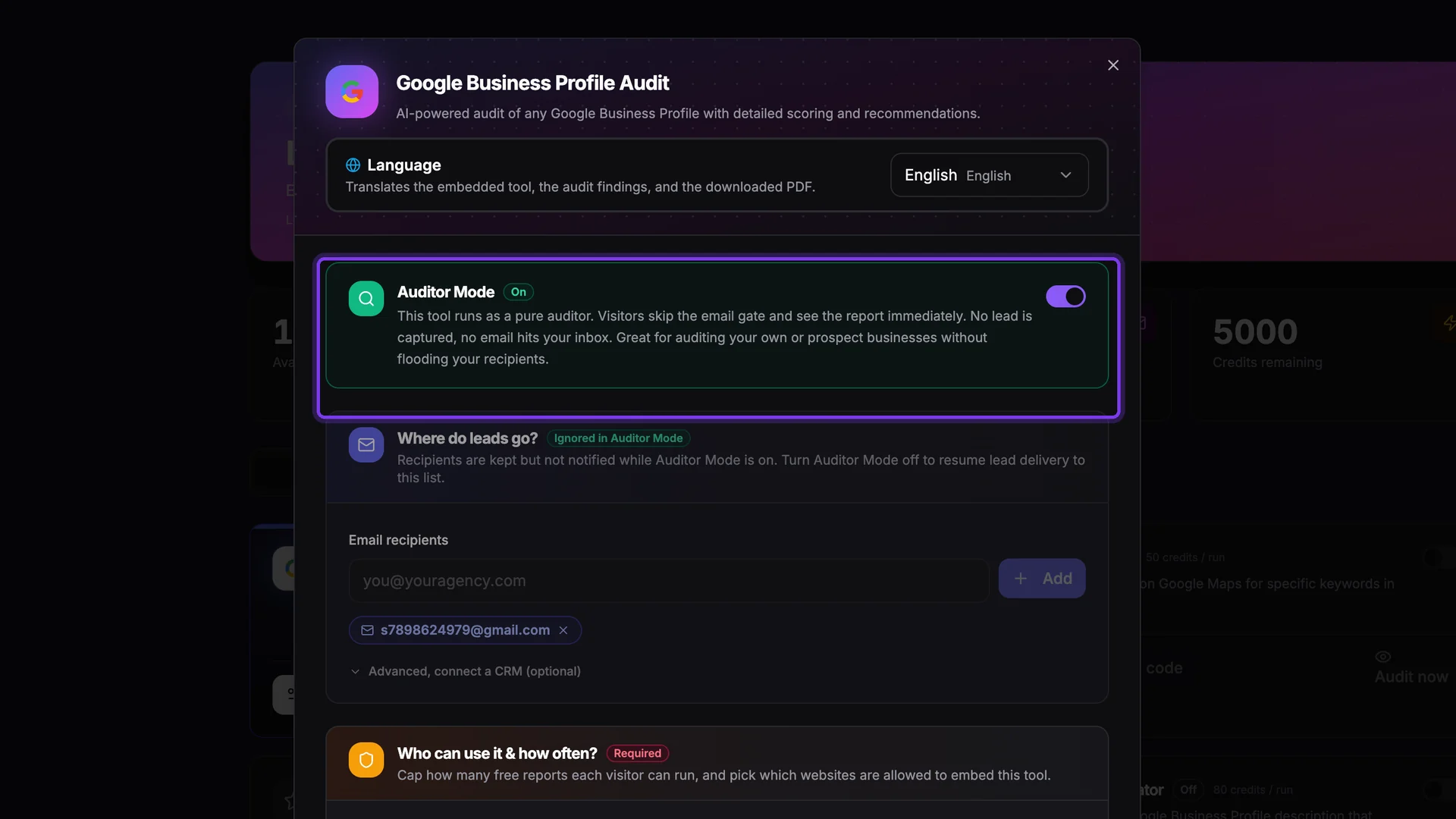
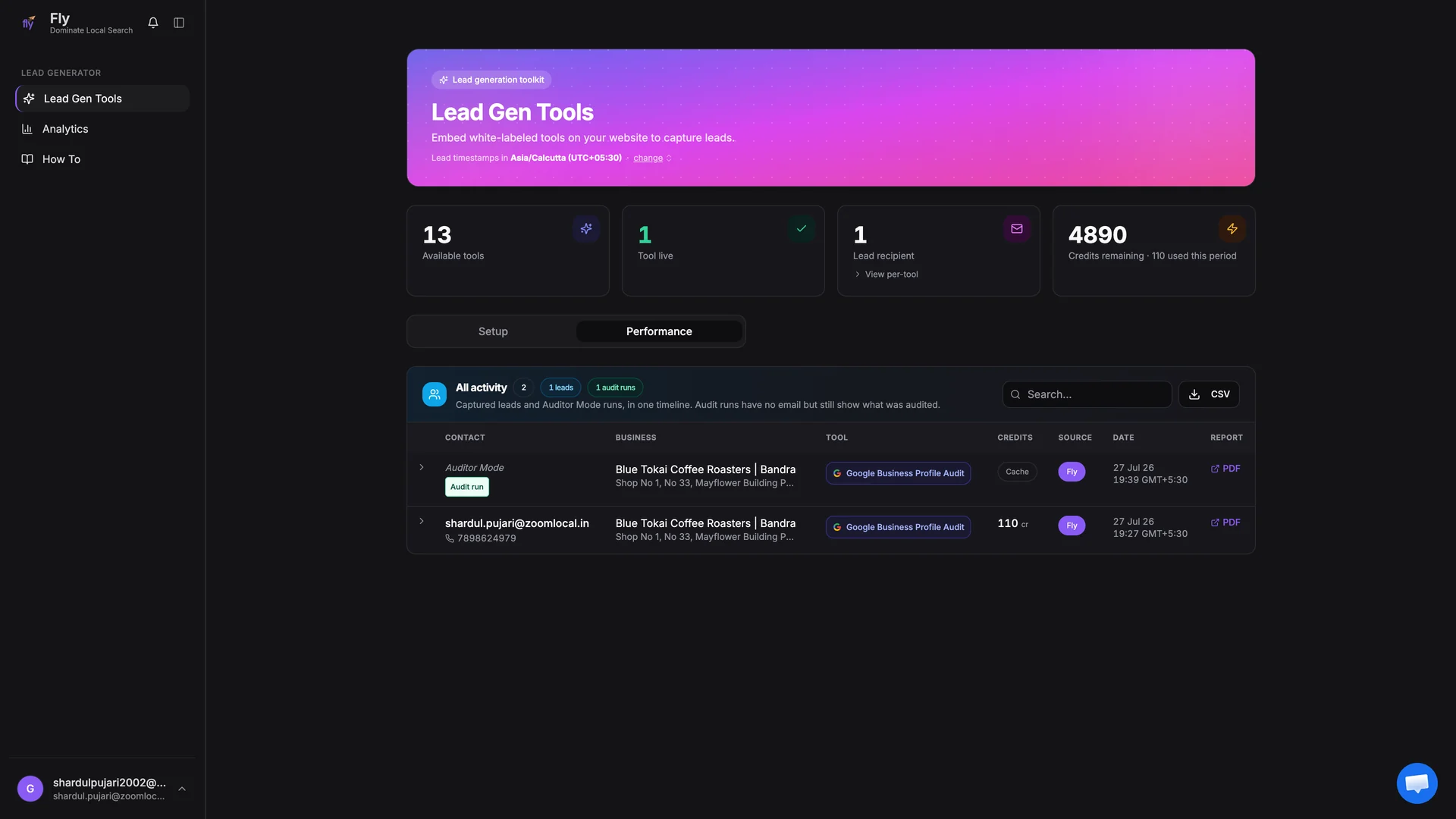
Runs made in Auditor Mode still show up in your Performance tab, marked as Audit run instead of a lead. You always keep the full history of what was audited, with the PDF link, even when no email was collected.
When to use it
Put the tool on your website
On the Setup tab, click Embed code on a live tool. The dialog shows a small snippet: a div that marks where the tool appears, and a script that loads it. Click Copy and paste it into your website's HTML.
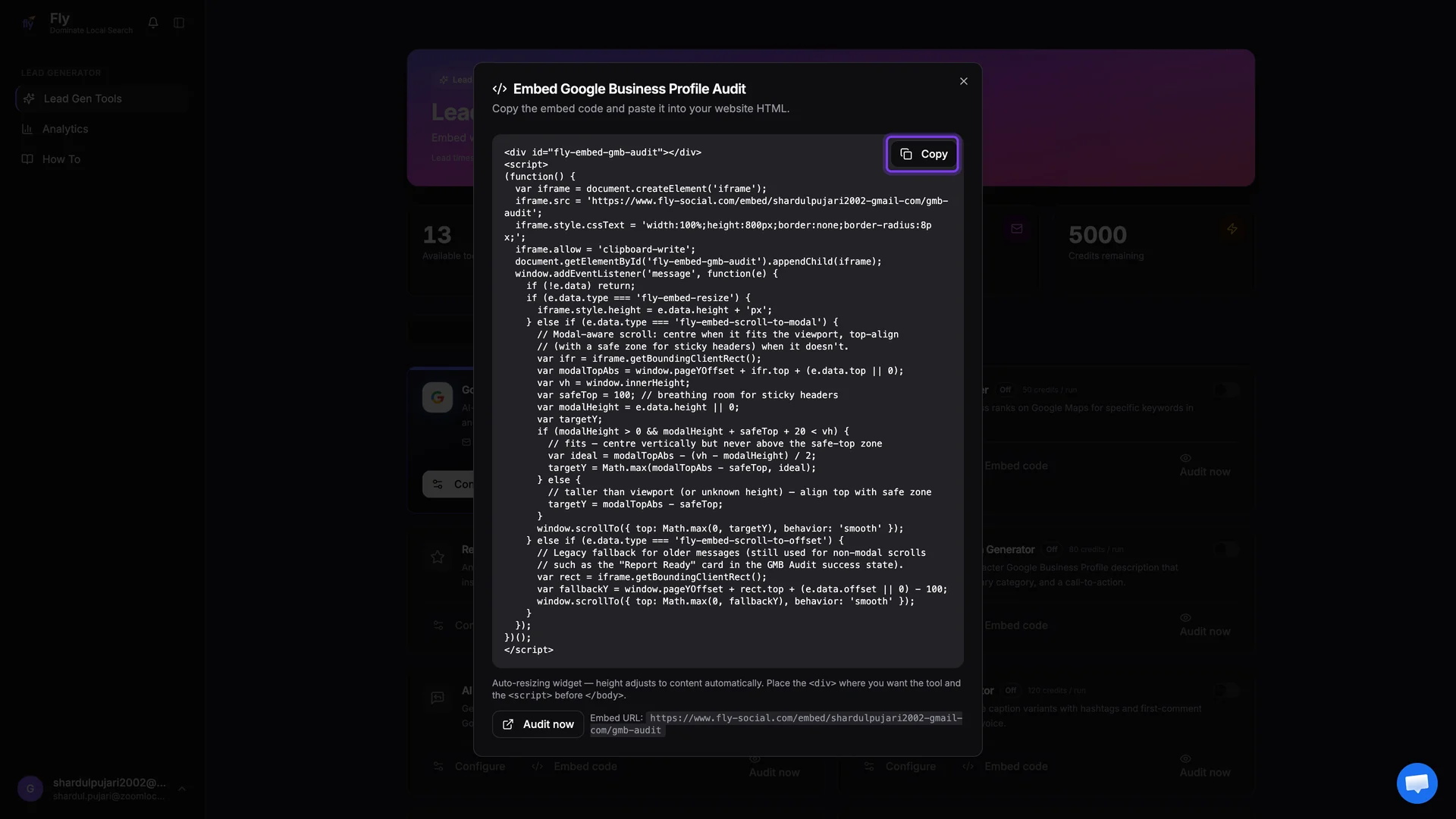
- The widget resizes itself automatically, its height always follows the content.
- Place the div exactly where you want the tool to render on the page.
- Place the script before the closing body tag, or next to the div, both work.
- Remember: the page hosting the embed must be on the domain you allowlisted in step 5.
Test it before you publish
Platform quick guides
The snippet is standard HTML, so it works on every major website platform. Find yours below.
WordPress
Edit the page, add a Custom HTML block (or an HTML widget in a page builder like Elementor), and paste the full snippet. Update the page and the tool is live.
Wix
In the editor choose Add, then Embed Code, then Embed HTML. Paste the snippet into the code box and resize the frame to full width.
Squarespace
Add a Code block to the page, paste the snippet, and save. Code blocks are available on plans that allow custom code.
Webflow
Drag an Embed element onto the page, paste the snippet, and publish. Custom code embeds require a paid Webflow site plan.
Shopify
In the theme editor add a Custom Liquid or Custom HTML section to the page and paste the snippet there.
GoHighLevel
In the funnel or website builder add a Custom JS and HTML element and paste the snippet inside it.
Framer
Add an Embed component to the page, choose HTML, and paste the snippet.
Custom site (any stack)
Paste the div where the tool should appear and the script right before the closing body tag. Works with plain HTML, React, Next.js, Vue, and anything that renders HTML.
If your platform is not listed, any place that accepts custom HTML will do. Paste the snippet and the tool takes care of the rest.
What your visitors experience
Here is the full journey a visitor takes on your website, using the Google Business Profile Audit as the example. Every screen carries your logo, your colors, and your copy. Fly is never shown to your visitors.
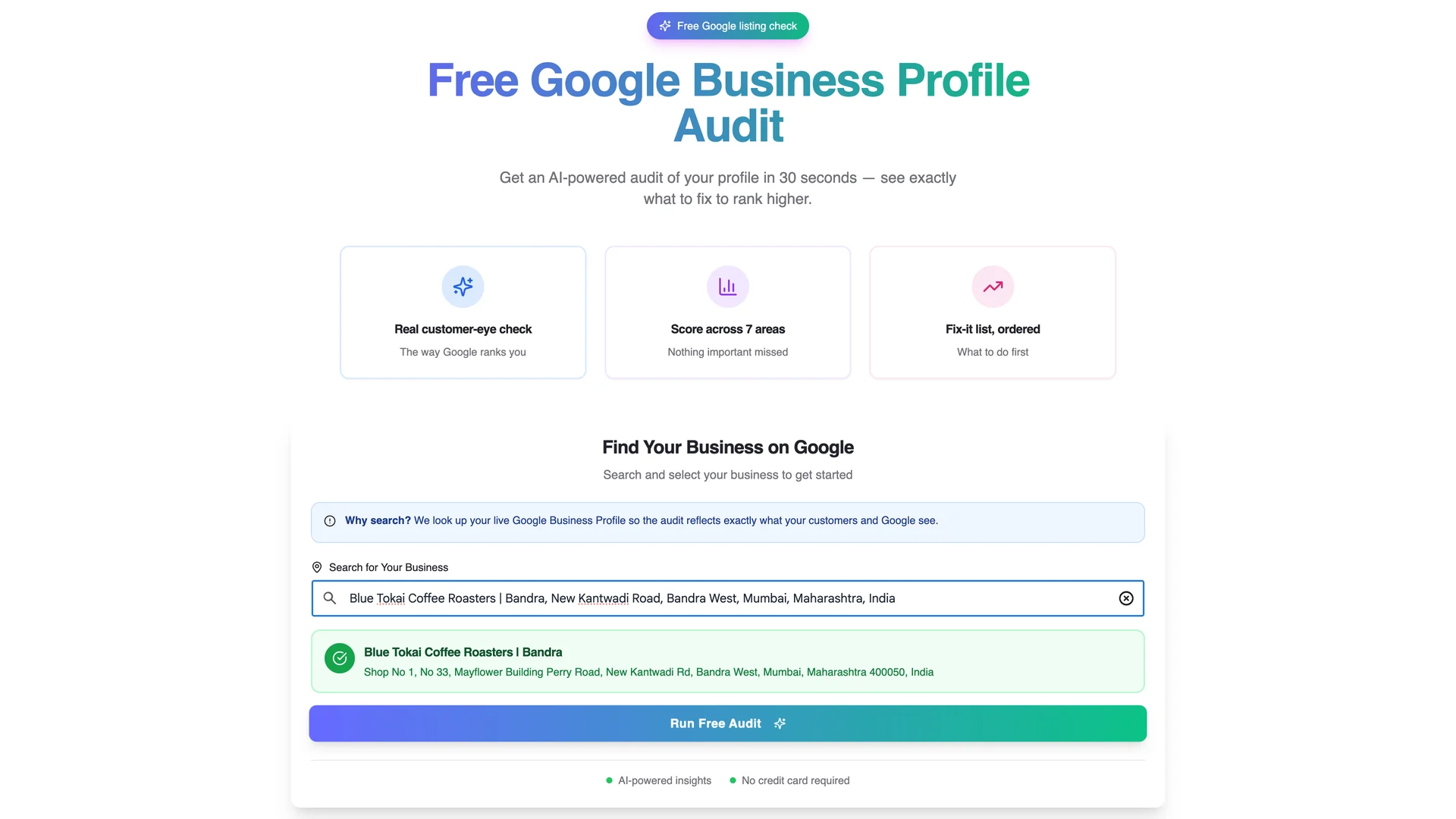
They find their business
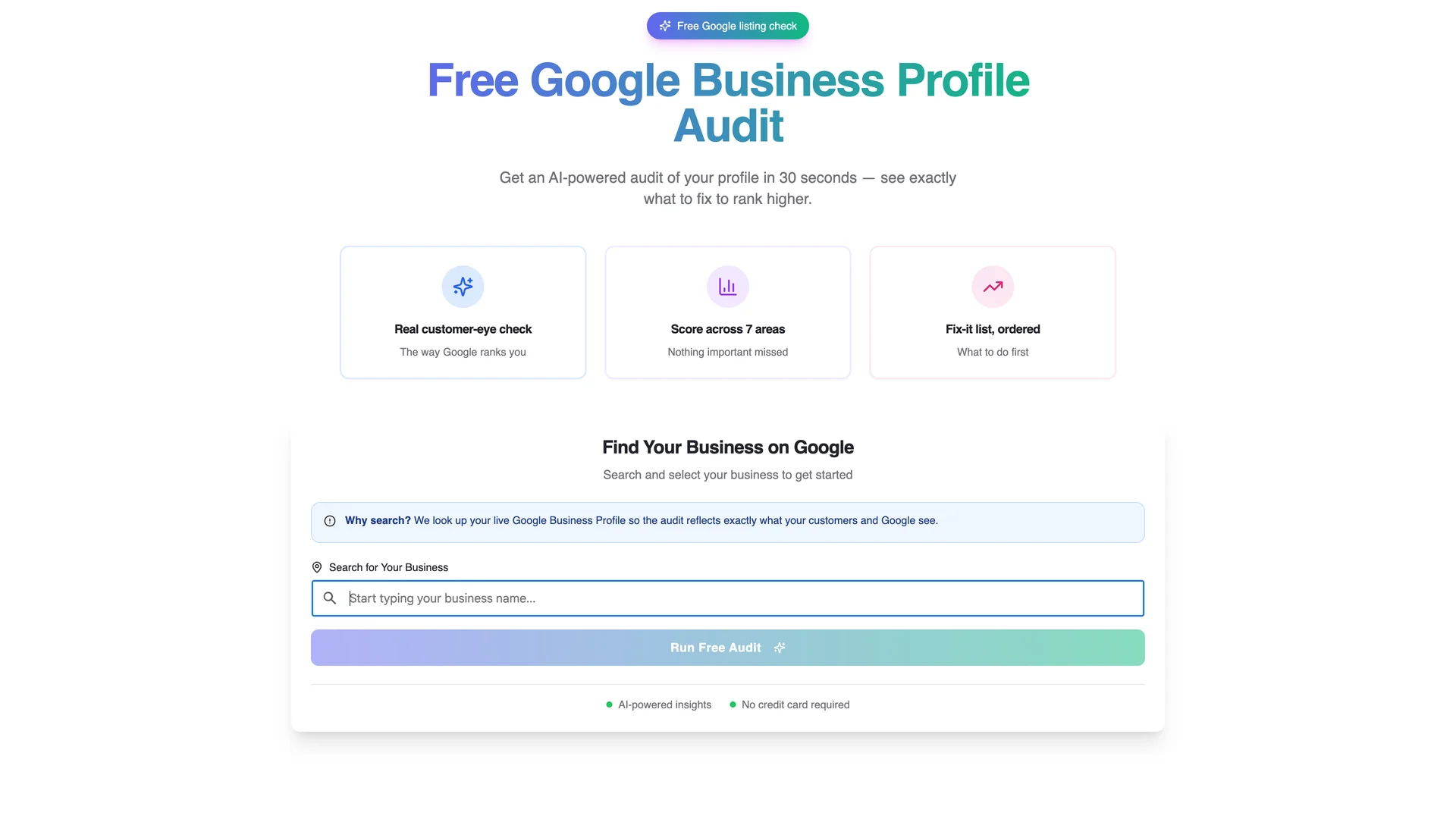
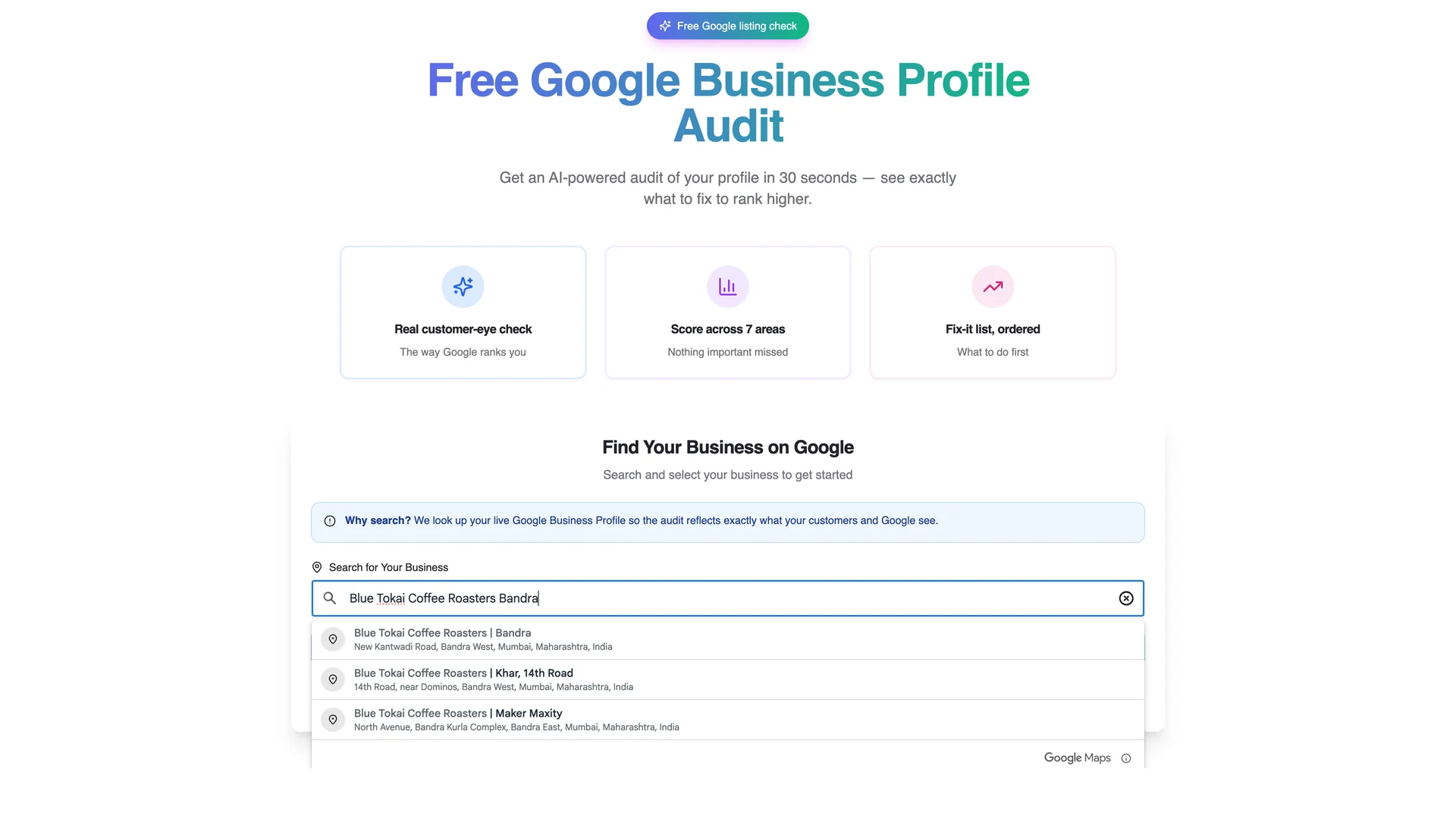
The tool greets visitors with your headline and a search box. As they type their business name, live Google suggestions appear. One click selects the business.
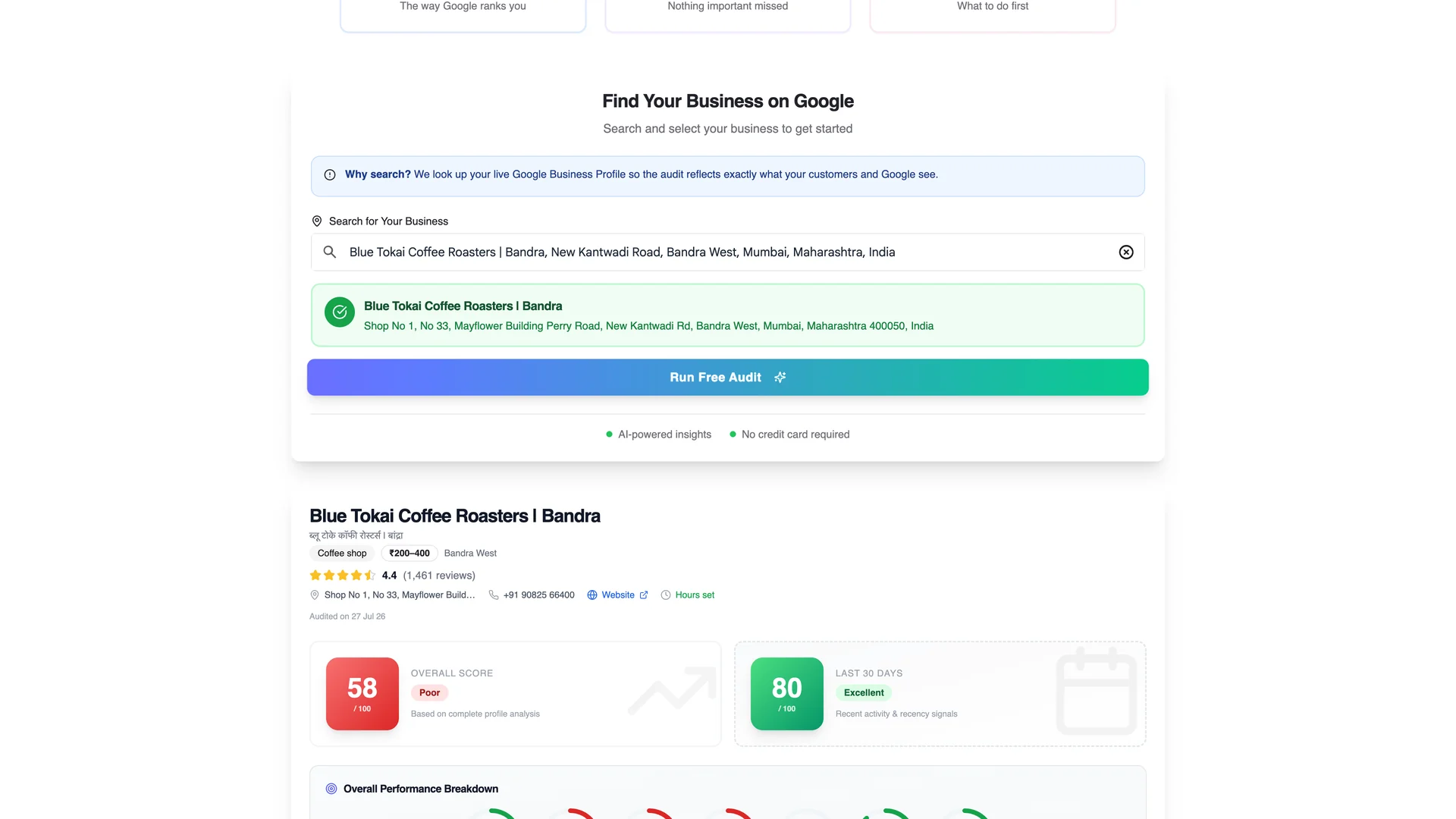
The audit runs and shows a free preview
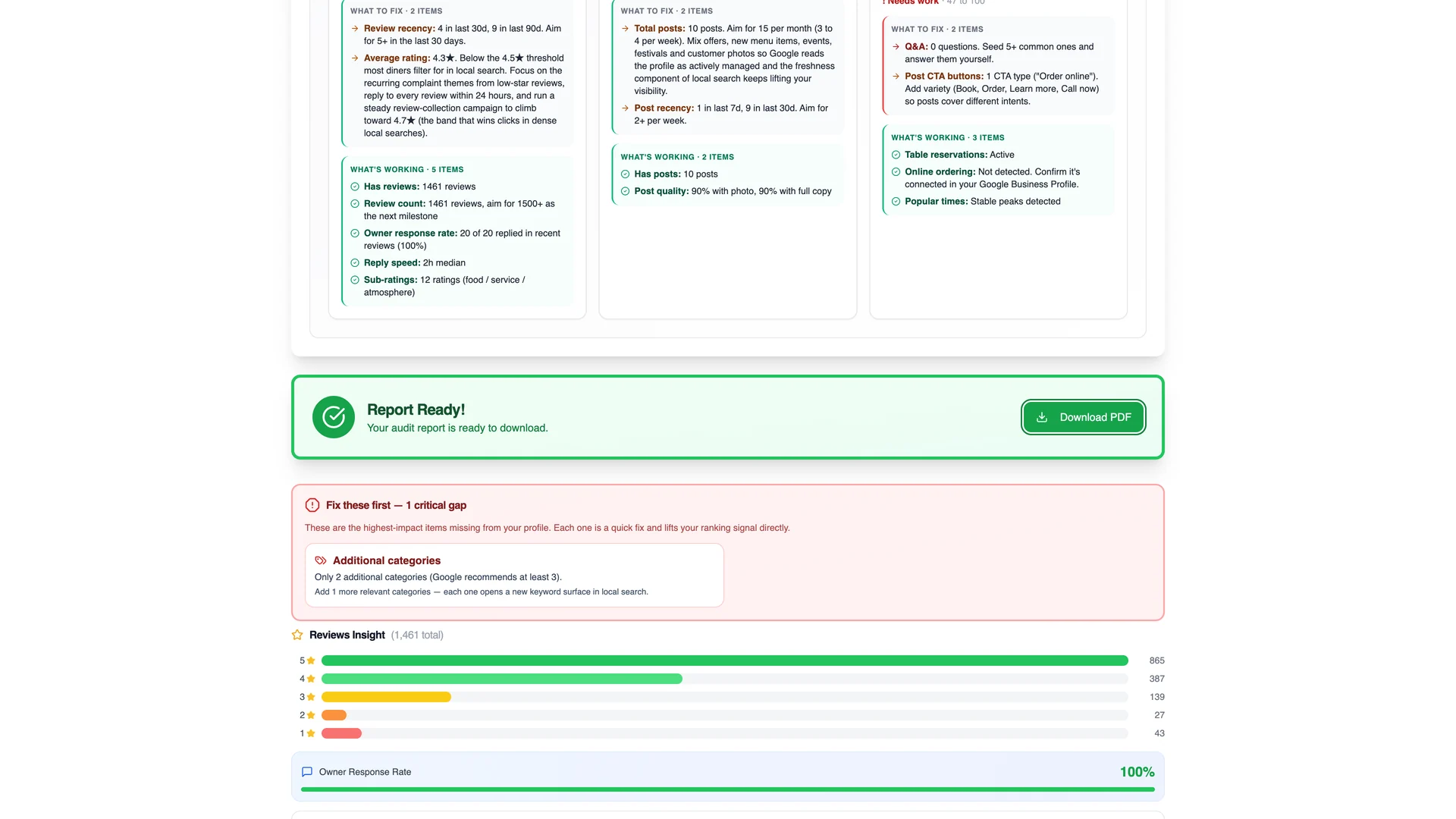
The audit takes roughly 30 to 90 seconds. The visitor gets a real preview without giving an email: about the first third of the report is open, including the overall score, the last 30 days score, and the per area performance breakdown. The deeper sections stay blurred behind the unlock card, that is your lead capture moment.
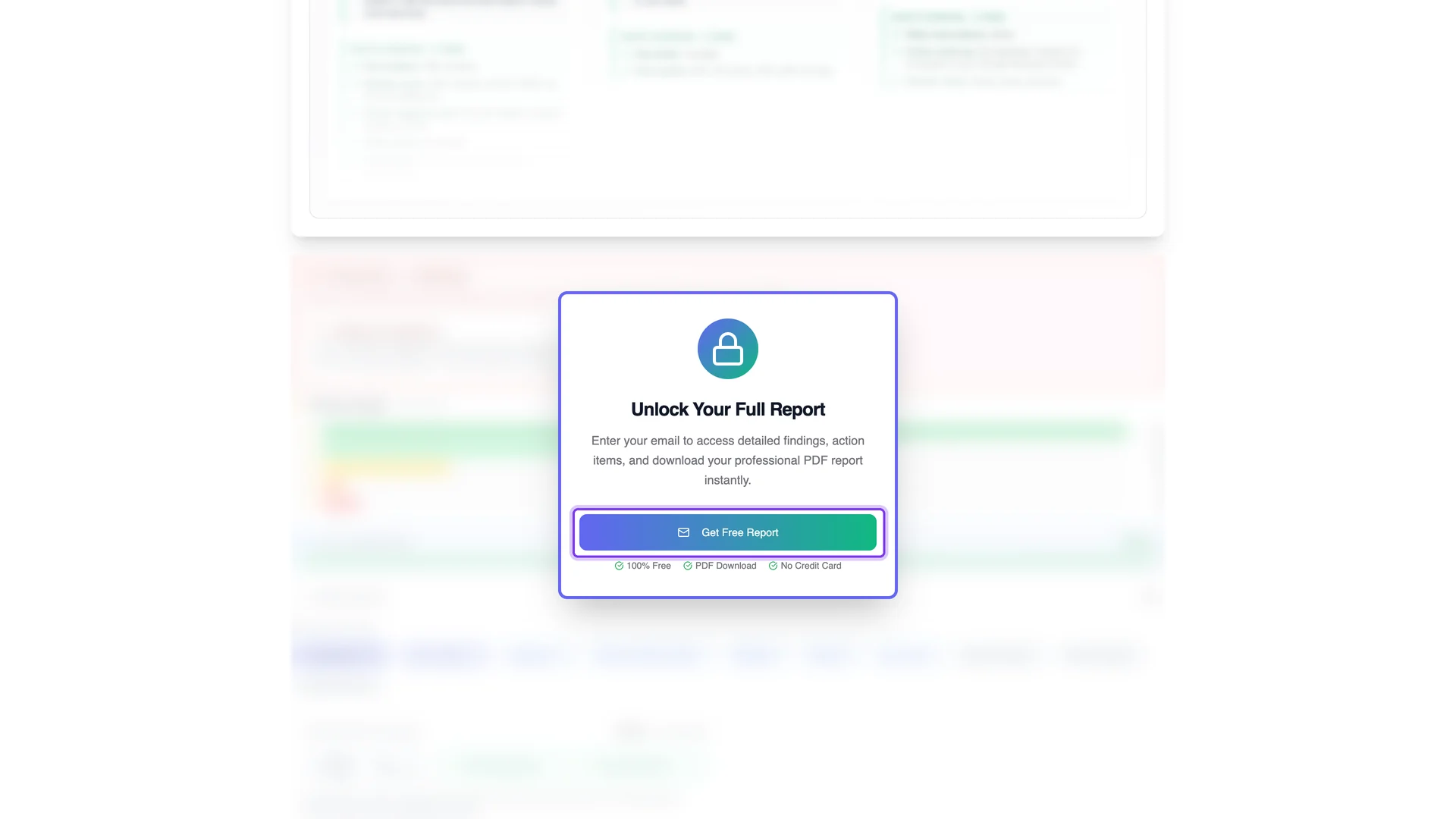
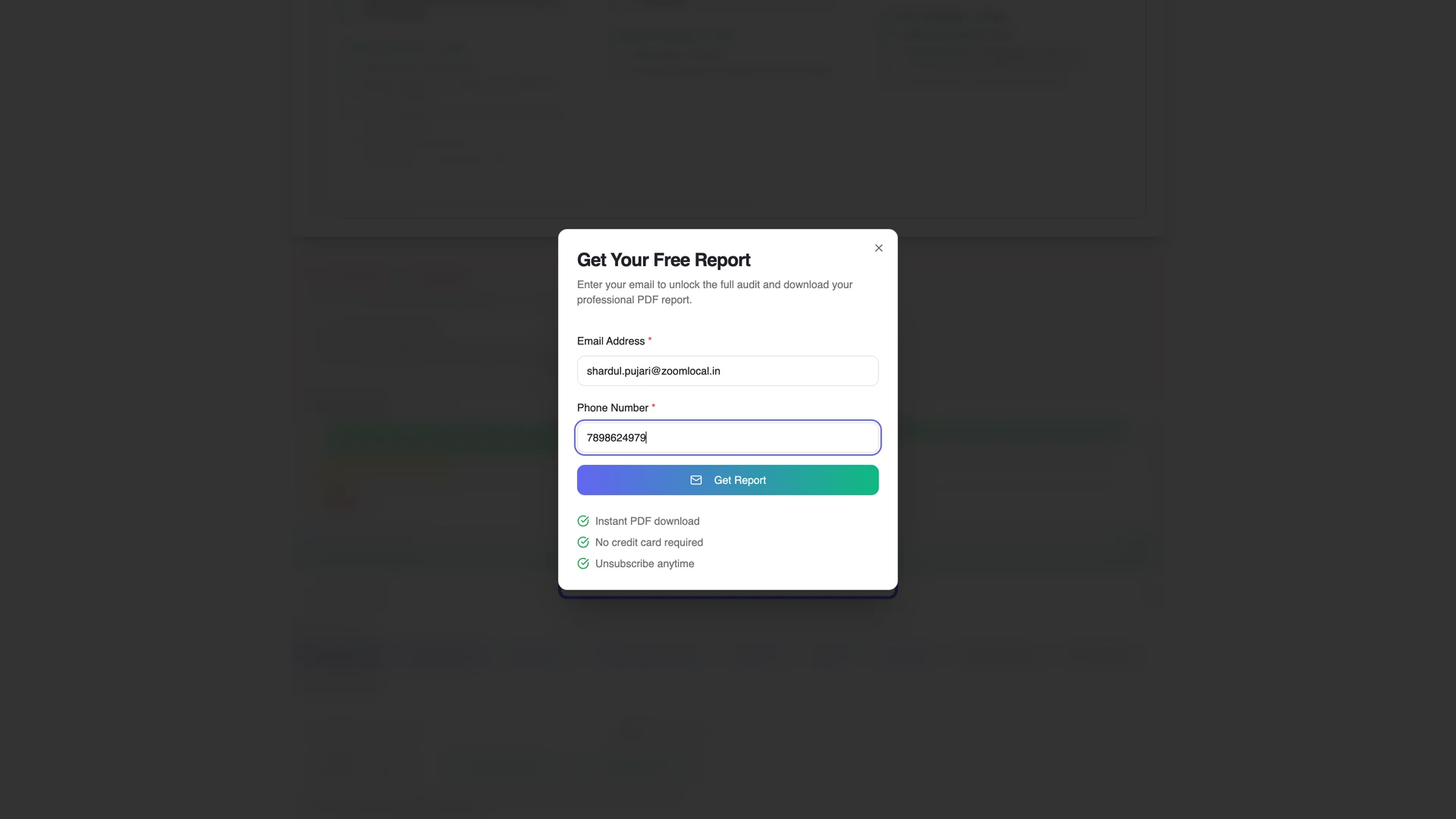
They unlock with email and phone
Clicking Get Free Report opens a small form asking for email address and phone number. The moment they submit, the full report unlocks, the PDF generates, and the lead lands in your inbox with a notification to your recipients.
The full report earns the trust
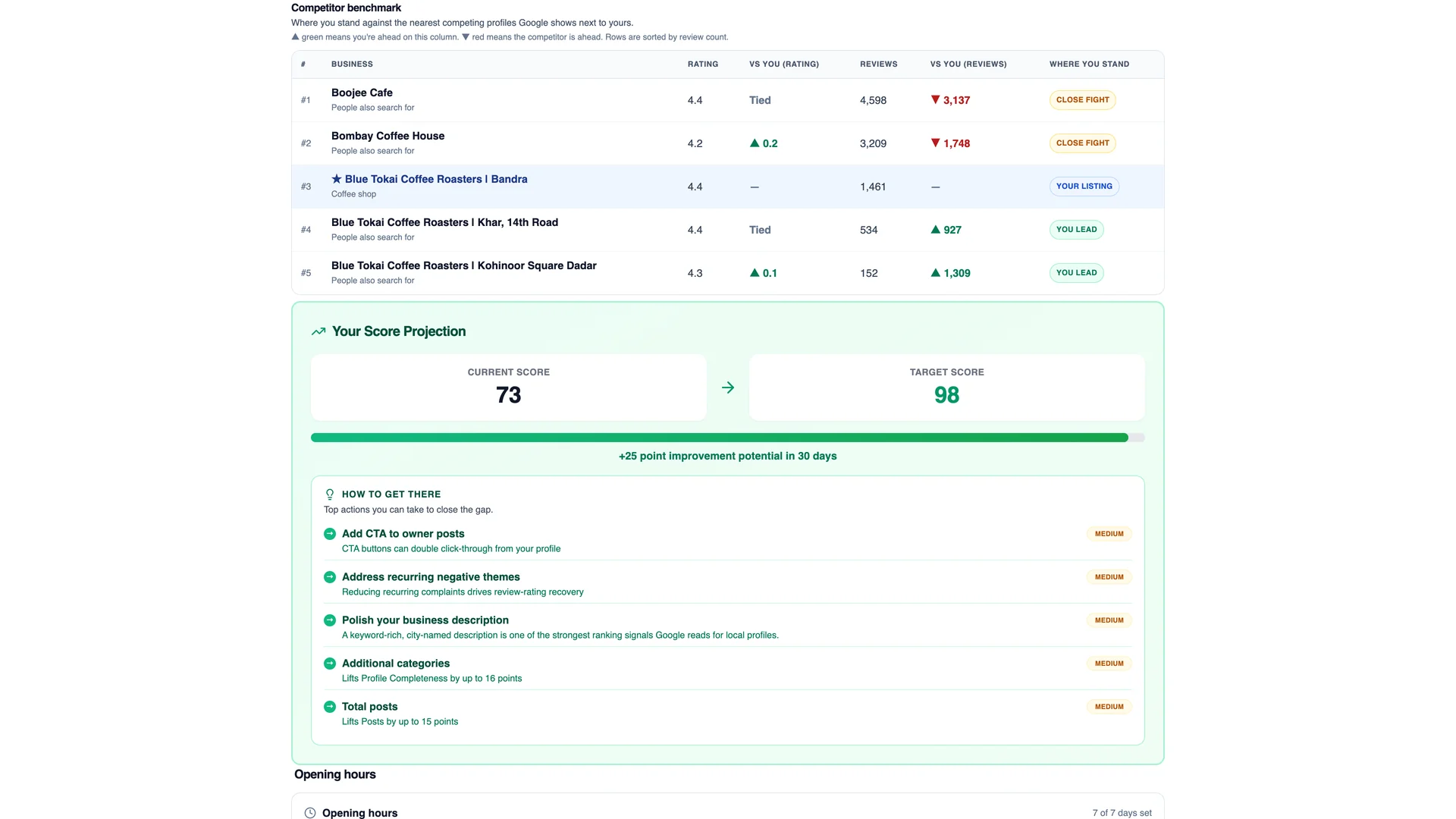
The unlocked report is genuinely useful, which is what makes this convert. It includes review insights, a competitor benchmark, a score projection, prioritised action items, and a week by week plan.
Where your leads land
Open the Performance tab on the Lead Gen Tools page. Every captured lead is a row with the contact's email and phone, the business they audited, the tool used, the scans spent, the source, the date in your timezone, and a link to the exact PDF report they received.
- Recipients you configured in step 5 get an email notification for every lead, with the report attached.
- Use the search box to find a lead by name, email, or business.
- Click CSV to export the full list.
- Lead timestamps follow the timezone shown in the page header, click change to adjust it.
Your first conversation with a lead starts warm: you already have their audit in hand, and so do they.
Track performance with Analytics
The Analytics page in the sidebar shows how your embedded tools perform on your site, over the last 7, 30, or 90 days.
- Views: how many times your embedded tools loaded on a visitor's screen.
- Tool runs: how many reports were actually generated.
- Emails captured: unique visitors who submitted their email, your leads, with the share of runs that converted.
- Scans started: visitors who filled the form but left before giving an email, this shows the drop off at the gate.
- Scans used: scans consumed in the window. Cached runs cost nothing.
- Cache hit rate: the share of runs served free from a recent cached result.
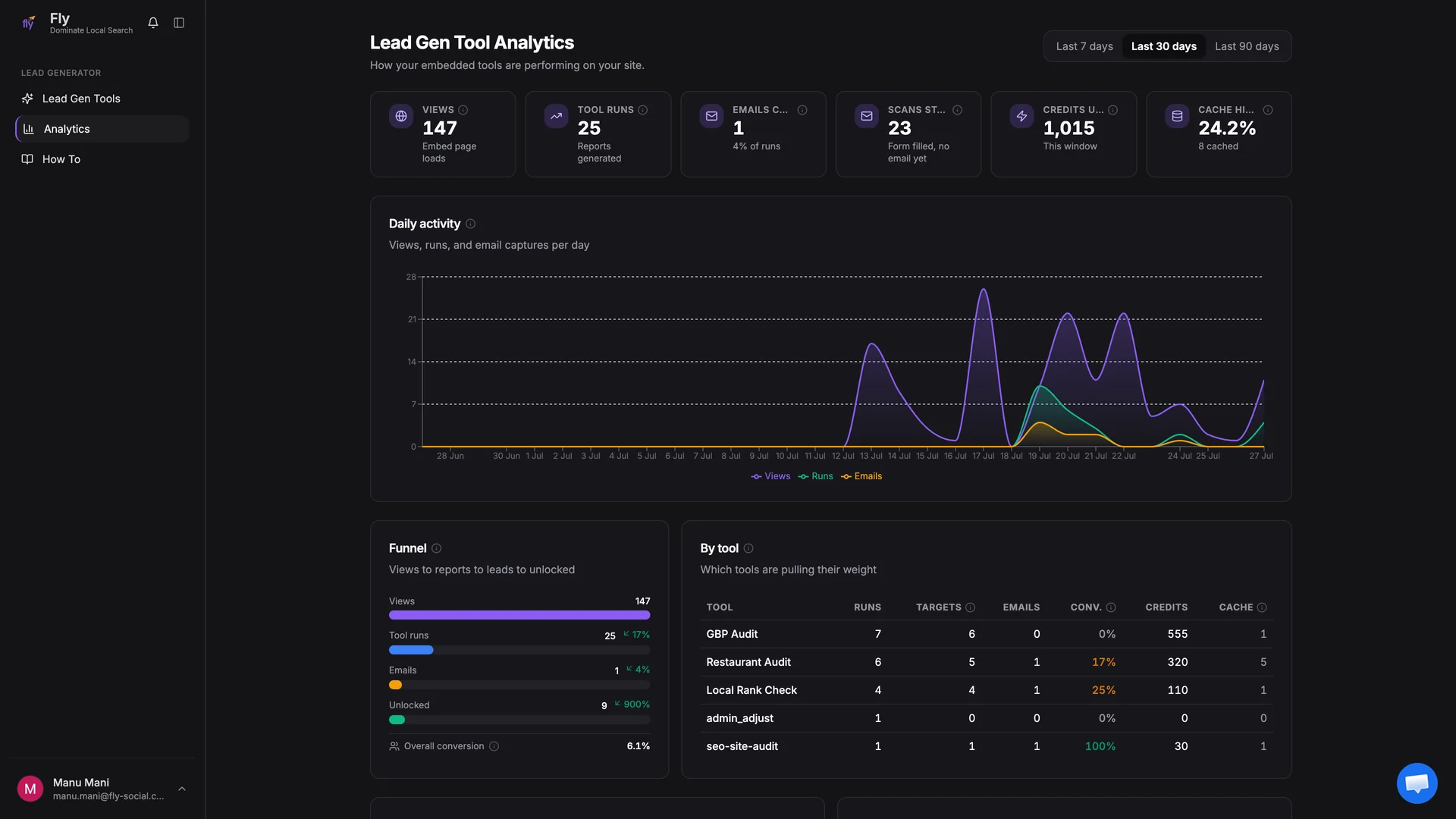
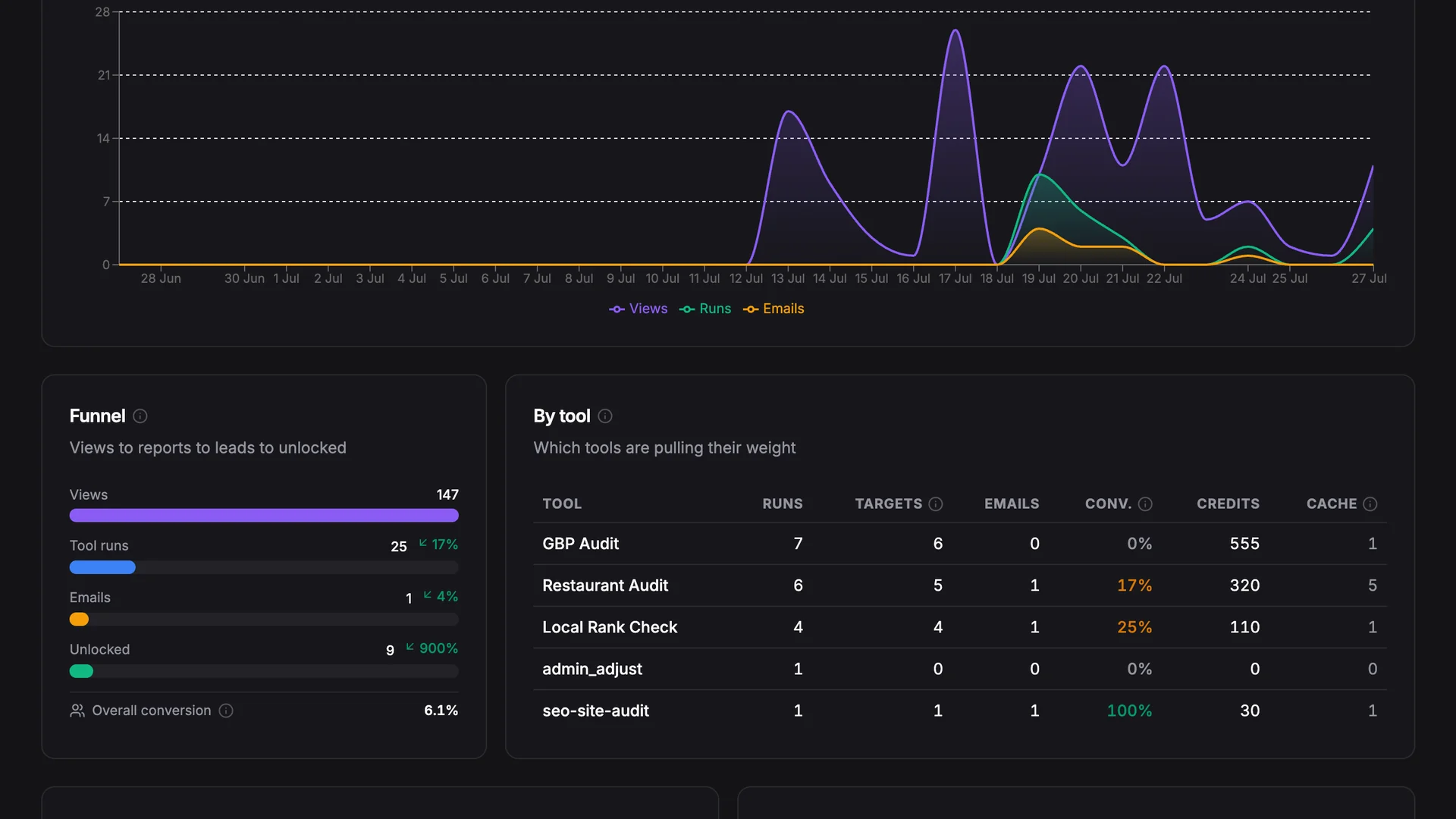
Below the tiles you get a daily activity chart, the conversion funnel, a per tool breakdown, the businesses audited most, and which pages on your site send the most visitors to your tools.
Troubleshooting and quick answers
The tool does not render on my website
Check the domain allowlist in the Configure dialog (step 5). The embed only renders on the one domain you entered there. Also confirm the tool's toggle is on.
A visitor hit the free report limit
That is the Free reports per device cap from step 5 doing its job. Raise the number, or leave the field empty for unlimited, and save.
I ran the same business twice and the second run was instant
Results for a recently audited business are served from cache within 24 hours, so repeat runs come back instantly.
Where do the PDF reports live?
Every lead row in the Performance tab has a PDF link to the exact report that was generated. Your notification emails carry the report as well.
Can I run audits without collecting emails?
Yes, that is Auditor Mode (step 7). Visitors see the full report with no email gate, and the runs are logged in your activity timeline as audit runs.
How white label is it really?
Fully. The embed and the PDF show your logo, your colors, your copy, and your contact details. Fly is never shown to your visitors, and leads only ever go to your inbox.
Still stuck?
Write to [email protected] or use the chat bubble inside your dashboard. Real humans answer.
Ready to turn your website into a lead machine?
Brand your first tool, paste one snippet, and your first lead can land today.